Showing posts with label PC TIPS. Show all posts

Wednesday, 19 February 2014

[Solved] How to fix FIFA 14 Screen Shaking

Posted by Unknown 4 Comments

Fixes for FIFA 14 PC


  • Always update your graphic card drivers! nVidia – AMD/ATI
  • For those with the Direct X crash issue please update your Direct X! Go here to find out how.
  • If your controller has problems with the game please download these Xbox360 controller files and put them in your main FIFA 14 folder.
  • If you get the “APPCRASH” error select the fifaconfig.exe and FIFA 14.exe go to their Properties > Compatibility and select Win XP SP3 as compatibility mode.
  • Try the next solution if the game crashes before launching: Open C:/My Documents / FIFA 14 / instance, select “replay0.bin”, right-click, Properties/ Check read only.
  • If the game crashes at the language page you need to re-install Windows Media Player! Tutorial here. The intro can’t run without WMP, so the game crashes.
  • Another solution for the lag is to set the SCREEN_SLEEP to 16 in C:/My Documents / FIFA 14 / fifasetup.ini.
  • If you get the ”E0001” error is because your graphic card doesn’t support the Shader Model 3.0! You must try to run your game on low settings and follow the next steps: check that the resolution from the fifaconfig.exe is correct, uncheck Vsync from fifaconfig.exe and try this fix. Also try to update you graphics card driver!
  • If you have graphic lightning issues, turn off the Anti-aliasing and V-Sync from your graphic card Control Panel OR set Anti-alising mode to application-controlled.
  • FIFA 14 is currently unable to support special characters (such as àéñõü). In the case where you PC name (or your Windows username) contains at least one of these characters, it will cause FIFA 14 to crash. We suggest you to rename your PC name or your Windows user name by following these two solutions.
  • Registry-Fix – Type in Windows-Start-Menu: regedit. You will see 1 tool regedit.exe -> start it. Now go to this directory: HKEY_LOCAL_MACHINE\SOFTWARE\EA Sports\FIFA 14\. Right-click in the right field and select new -> String Value. Type the following name: Install Dir. The value is your FIFA path. Here you can see a screenshot:
  • For those with heavy stuttering/lag:
    From the fifaconfig.exe disable MSAA Options and Vsync and thick “Disable Windows Aero Theme”.For rendering quality is up to you how to set it but remember that an old PC would never run FIFA on High! Now follow the next steps:
    Nvidia: Go to your graphic card control panel (right-click on desktop), go to Manage 3D Settings,Program Settings and add the FIFA 14 exe and set these settings for it. (At Texture Filtering – Quality put High Performance)
ATI: Get RadeonPro make a profile with the FIFA 14 ,select it,click on Profile > Visual and add these settings: Anti-Aliasing = Application Controlled, Anti-Aliasing Filter = Multisampling, Anti-Aliasing Mode = Multi Sample, Anisotropic Filtering = Application Controlled. From the Advance and Tweak tabs turn OFF Vsync & Tripple Buffering.
Note that these are only standard settings and will not fix your problem 100% because everyone has different specs. You can change and tweak the settings yourself until you reach an optimal configuration for your game and the lag and stuttering will stop. Also don’t forget to use the D3DOverrider!
  • To increase your FIFA 14 level of definition use this mod.
  • More fixes for the FIFA 14 Crashes / Not launching and the E0001 error can be found here.
  • If you can’t play online matches in FUT 14, then please read this guide.
  • Issues with sounds and commentaries? Try to run the game in stereo. You can set the sound to stereo by going into the settings of your audio control panel.
  • The purchase of FIFA Points has been temporarily removed from the Origin Store. FIFA Points will still be available to purchase in-game.
Read More

Sunday, 1 December 2013

Trace Mobile Number With Name In India

Posted by Unknown
This is one of the helpful posts I have written, it helps you to trace unknown mobile number with name. So You can find easily those people who are calling & Pranking you. Here is how to...
1> Go to Truecaller
2> Sign in with your google plus or facebook account.
3> Select Your Country (as India).
4>Put the mobile number you want to trace or locate.


5> Bingoooo! You will get the name! :)

This is one best article so far I have ever written this helps you to trace name of unknown mobile number. you can find those who are calling and Pranking you. - See more at: http://www.alltechtricks.com/2013/11/trace-stolen-lost.html#sthash.qt3pMOnt.dpuf
Read More

How to Disable Automatic Sleep in Windows 7

Posted by Unknown
Here is the method to disable autometic sleep in Windows 7, follow the steps...
1> Goto start --> Select Control Panel
2> Click on 'Hardware and Sound'. --> Goto Power Options
3> Select "change when the computer sleeps" under power options.
 4> The option "put the computer to sleep" is set to 30mins by default. To prevent autometic sleep mode, set it to never.
5> Save the change. Complete! :)
Read More

Saturday, 23 November 2013

Download Youtube Videos Online Without Java

Posted by Unknown
We often download videos from youtube online. But if you don't install java, it would not let you allow to download youtube videos. But there is a site named clipconverter.cc, which will allow you to download yutube videos without installing java.Here is how...
1> Open the youtube video which you want to download.
2> Copy the Video URL from the address bar.
3> Go for clipconverter.cc.. here is the interface screenshot.
4> Paste the url in the box.
5> Select mp4, click 'continue'.
6> After detected media, it will show several qualities of the video, choose whatever you want.
7> Click on Start [opsss, I have mistaken to cover the button in screentshot, sorry for that,though it's not a big issue]
8> Download it... Complete!
 If you are in hurry and you have not install java yet, you can download youtube videos online this way. :)

Read More

Tuesday, 5 November 2013

Where The Windows Password Store?

Posted by Unknown
The common question may strike or even stricted someone anytime anywhere... where the windows password store? how to break windows password?... its not as tough as you though, just need a little bit affort. The file is stored at sam file in C:\WINDOWS\system32\config in windows xp, the location can be differ [like c:\windows\system32\config\sam \SystemRoot\System32\Config\SOFTWARE] as microsoft upgeades its secuirity system. SAM actually described as Security Accounts Manager, it's a part of system registry. Follow the ways-
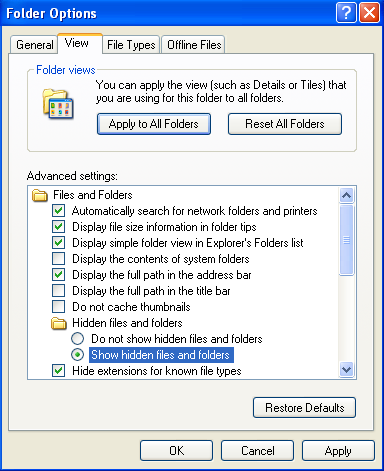
1>  Goto tools --> Folder options --> View. Make sure that your hidden files has been shown.
2> Apply the settings, press 'OK'.
3> Search for 'sam' in windows32 folder.
4> You can see a file named sam like this.

The windows password are saved here as encripted. You need a decoder for this. So you must know how to decode sam file. You can go for the software named Saminside. Decode the file, finish! :)
Read More

Saturday, 26 October 2013

How to save Facebook video without any Software!

Posted by Unknown
People often getting tired how to download video from facebook. Today I will show you how to download.

1> Goto the page where the video exists.
2> Replace 'www' with 'm' in address bar.
3> Now you can see the mobile view of facebook.
4> Now right click on the video and select "open link in new tab".You can see the save option.
5> Click 'OK' to save the video.
Read More

Tricks to Speed Up Your Slow PC

Posted by Unknown
We often face our PC slow. We can't understand why, but we install several softwares to make it fast. But maximum time the softwares doest not work properly or we can't understand which software suits best for my PC. As a matter of fact, we change or reinstall our operating system,format our hard disks.Today's post will help you to overcome the problems and surely boost up your pc.
 
Goto Start --> Open Notepad.  Copy the following codes.

Save the file as "SPEED.bat". Keep the file in your desktop. When you click double on the file, it will refresh your computer and boost up speed. Enjoy! :)
Follow my blog with Bloglovin
Read More

Monday, 21 October 2013

7 Tips To Make your PC Fast

Posted by Unknown
We often face to the common problem, slow computer. Damn irriating! Here are some tips how to recover your pc from the problem.

1> Go to 'Run' --> Type %temp% . The folder will open where the temporary files are stored. Delete all the files.
2> Go to 'Run' --> Type prefetch. Delete all the files.
3>  Open Disk Defragmenter. Defrag your hard disks. It will arrange all your data properly that how they can be found in less times by PC.
4> Don't store your files to desktop. It will slow your computer.
5> Use registry cleaner(like CCleaner) to clean all your unnecessary register files.
6> Go to Control Panel. --> Add or remove Program. Uninstall unnecessary applications.  
7> Make sure that your C drive (where you have loaded your operating system) have enough space. (recommended 2 GB free space)
 
Now you will definitely understand the change. Enjoy!
Read More
Related Posts Plugin for WordPress, Blogger...